Jobs in Scripting
When a script is executed, a job is created to track its execution on the selected device(s). The Jobs section provides detailed information about script execution status, logs, and device-specific outcomes.
Viewing Jobs
You can access Jobs can from the following locations:
- Libraries > Scripting > History: Displays all jobs across devices.
- Devices > Scripting > History: Shows jobs specific to a selected device.
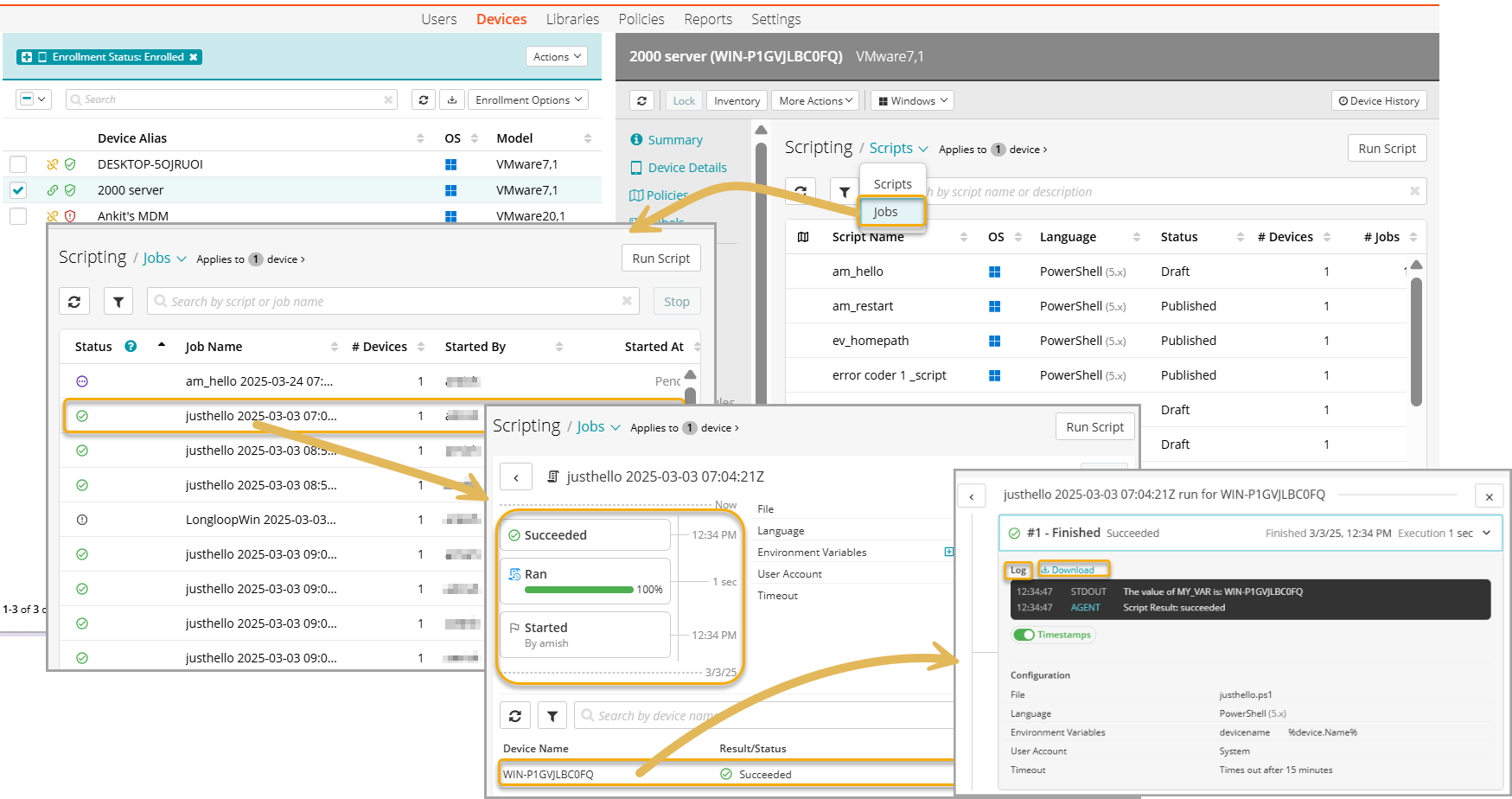
View job details
Click on a job from the list. The job details page opens.
It provides the following details:
- It provides the execution status. It indicates whether the job is succeeded, failed, running, pending, or stopped.
- It gives the job details. Clicking on the job displays the details such as job name, execution environment, and any associated environment variables.
- It provides device information. It lists the devices on which the script ran.
- It provides Logs. Clicking a device name allows you to view the job logs and you can download log files by clicking the Download button.
Job Statuses
Each job has a status that reflects its execution stage. Each job status is represented by a unique icon for easy identification. The various job statuses are:
- Running
 – The script is currently executing.
 - Succeeded
 – The script completed successfully.
 - Failed
 – The script execution encountered an error.
 - Pending
 – The script is waiting to execute or attempting to stop.
 - Stopped
 – The job was manually stopped before completion.
Stop a Job
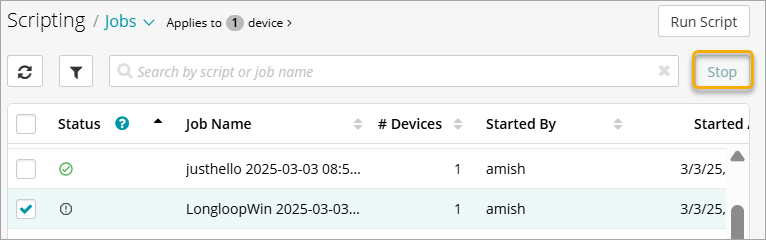
If a job is in progress, you can stop it manually from the Jobs list.
You must select the job and click the Stop button to halt the job.
A stopped job cannot be resumed. You must execute the script again, which creates a new job.
Job Preservation
Jobs with a Succeeded status are retained for 60 days unless manually deleted.
When a job's history is deleted, all associated information about scripts executed within that job is also removed.
Jobs with a Failed status are retained indefinitely to allow for investigation and must be deleted manually.
Jobs in a Pending or Running state are not automatically deleted.